I’m writing this in September 2026 on a 14-Inch MacBook Pro M1 Pro from 2021, which has been one of the best computers I’ve ever owned. For years, I’ve tried, tested, deleted, and used more Mac apps than there are birds in an aviary. These are the ones that I swear by as a writer, a technologist, and a YouTuber.
The list below represents my continued effort at optimizing my software for appropriate spend. I hope it helps you do the same.
Updated annually (as of September 2026). Completely unbiased, no affiliate links.
Note: this post is not sponsored or are there any affiliate links contained herein. These are simply my recommendations based on my 25 years of experience as a technologist.
1Password
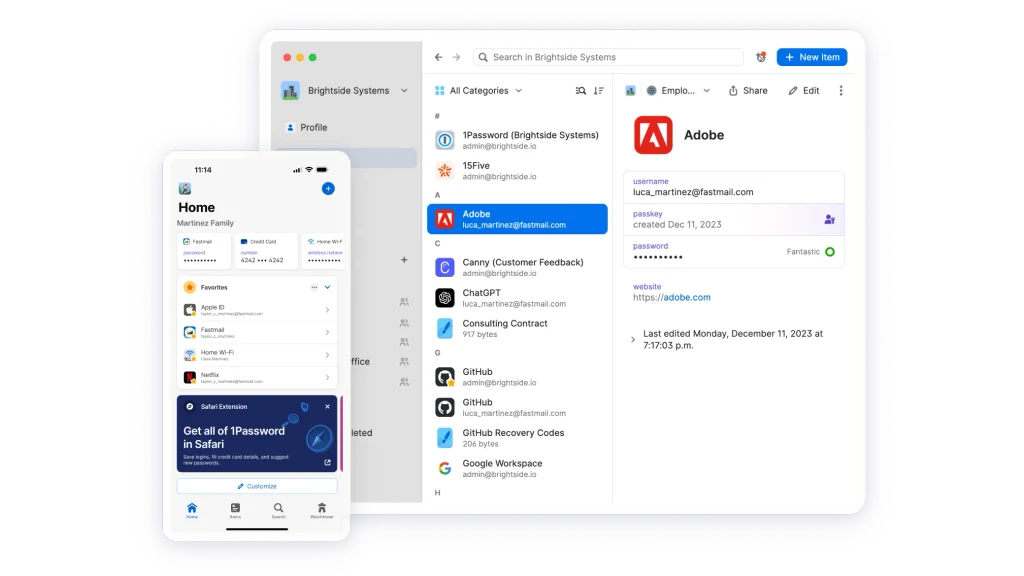
As the Chief Information Officer of a half a billion dollar travel company, I can tell you that password management is the number one thing you can invest in to safeguard your personal data AND make accessing all your websites way more simple. You can safely store credit card numbers for easy input into webforms. And you can store other information in the vault such as crypto hash keys or the password to your mother’s WIFI. If you set it up right and use it religiously it will become your favorite Mac app.
There are other password managers available, including one by Proton, but 1Password is the gold standard.
Free Alternative: Apple Password

This native Apple app is getting better, but doesn’t have as robust a feature set as 1Password.
AltTab (freemium)
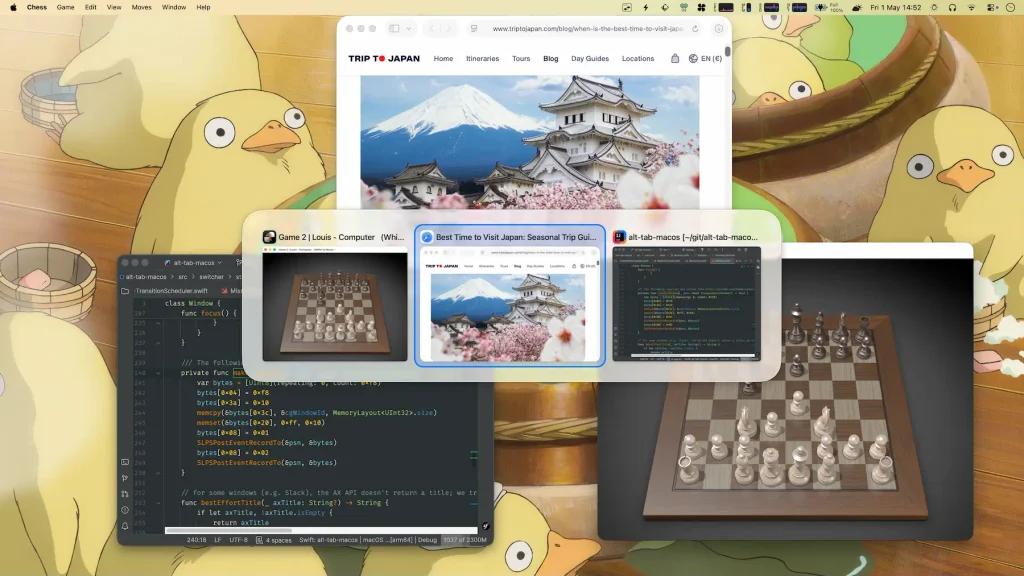
As a lifelong Mac user who has been forced to use a PC at work, AltTab addresses the one PC feature that I miss on my Mac: using Alt+Tab to quickly move among open applications and windows. Free, $10.00 one-time purchase, or $25 lifetime. I gladly paid the $25 lifetime license.
AppCleaner (free)

A lightweight utility for macOS that thoroughly uninstalls and cleans unwanted apps by finding and deleting hidden service files and caches that can be missed when dragging apps to the trash bin. Keep it in your dock and simply drag unwanted apps to the AppCleaner icon.
Bartender (paid)

A utility app that cleans up your menu bar. Particularly useful since there is a dumb notch on my MacBook Pro M1. Infinitely configurable. Various pay options including a $20 one time license.
Free Alternative: Ice
Some are moving to this tool after Bartender was acquired.
Be Focused (freemium)
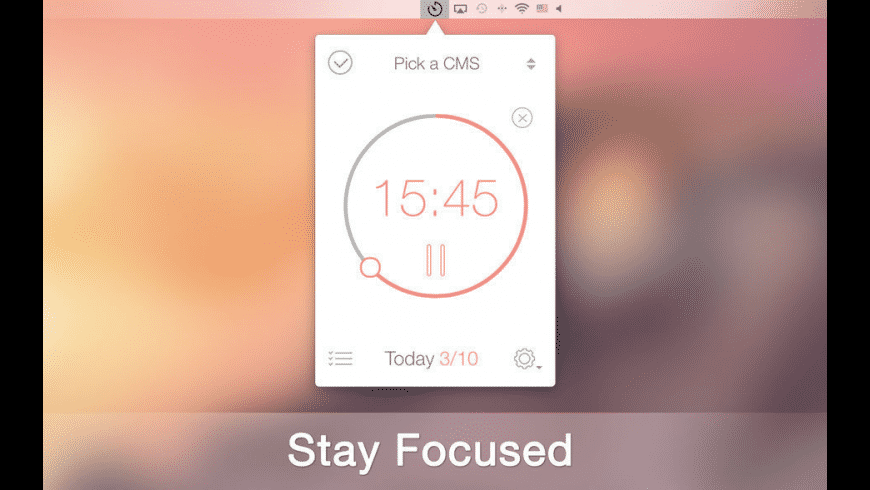
A thin Pomodoro timer app that is free for the basic timer functionality and offers paid versions that synch across your devices and allows you to export your data (not sure why you’d need to do this lol).
Brave Browser (free)
Maybe controversial, but I use Brave (along with Proton VPN) to access my financial institutions. I realize that Brave has had security mis-steps, but it’s one layer of security up from Google Chrome and it integrates with 1Password.
CapCut (freemium)

Most of my video editing is long form (see FinalCut below) but CapCut is a fantastic short form video editor. I’m too old to edit anything other than a text message on my iPhone, so CapCut for desktop is where it’s at for short form.
Claude (freemium)

As of this writing, I largely use either Claude or Gemini for my AI needs. Claude is where my projects, skills, and workflows live for running my side businesses, research for my YouTube videos, and research for my newsletters. Gemini is for everyday questions, learning new skills, and life research.
CleanMyMac (paid)
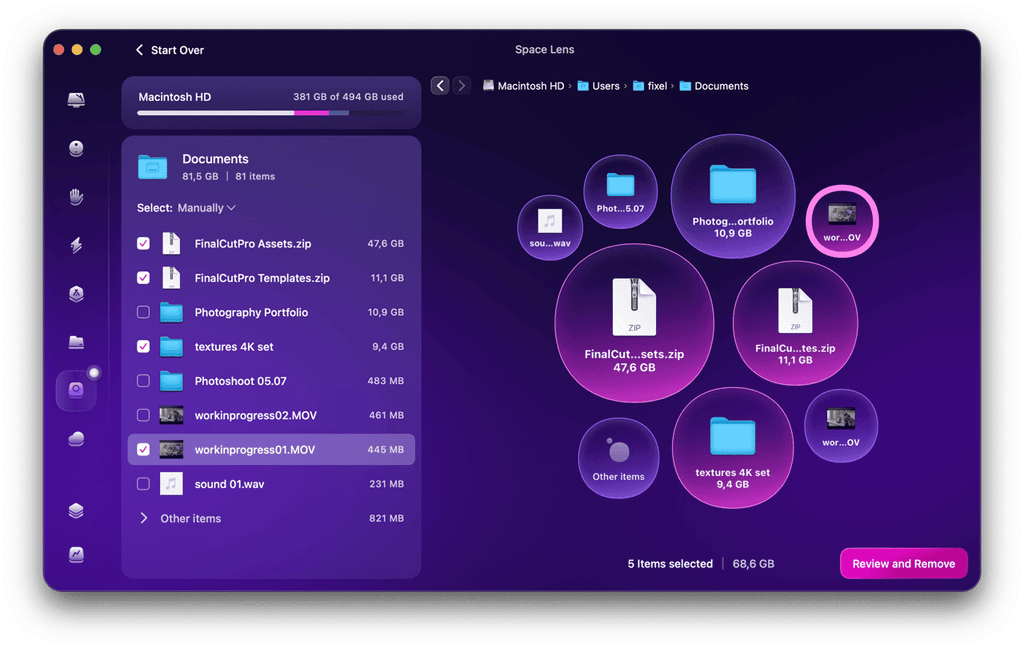
I can only recommend this app if you’re OCD like I am about keeping your computer clean. The design and UX is horrible (reminds me of the old Flash apps back in the day), and it’s $40 annually, but this app has found hidden files that AppCleaner missed. I also get a large amount of satisfaction from deleting and cleaning my Mac.
No clue if it makes the machine run better, but it makes me feel better. Ha ha.
Cyberduck (free)
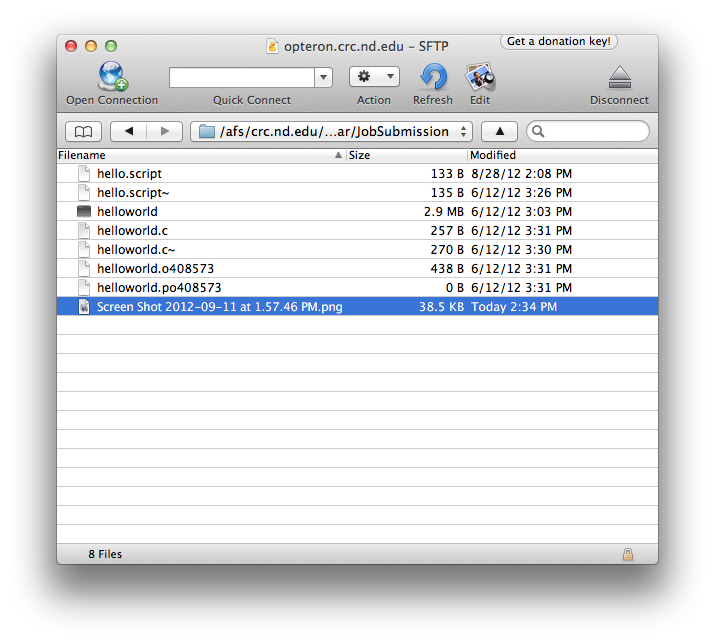
My FTP app of choice, although I want to experiment with Forklift as I’ve heard good things. Cyberduck has been with me for a couple of decades and it’s never failed me. I have it set up the way I want and it works every time. It will prompt you to donate when you quit.
Darkroom (freemium)

A lightweight photo and video editor that integrates with Apple Photos. Particularly handy for simple editing and it helps you avoid the invasive (and expensive) Adobe suite. Lately, I’ve been doing more quick photo edits in Canva Pro so my Darkroom usage has languished. Also, for my street photography hobby, I still use Lightroom Classic as I don’t manage that workflow in Apple Photos.
Downie 4 (free trial)
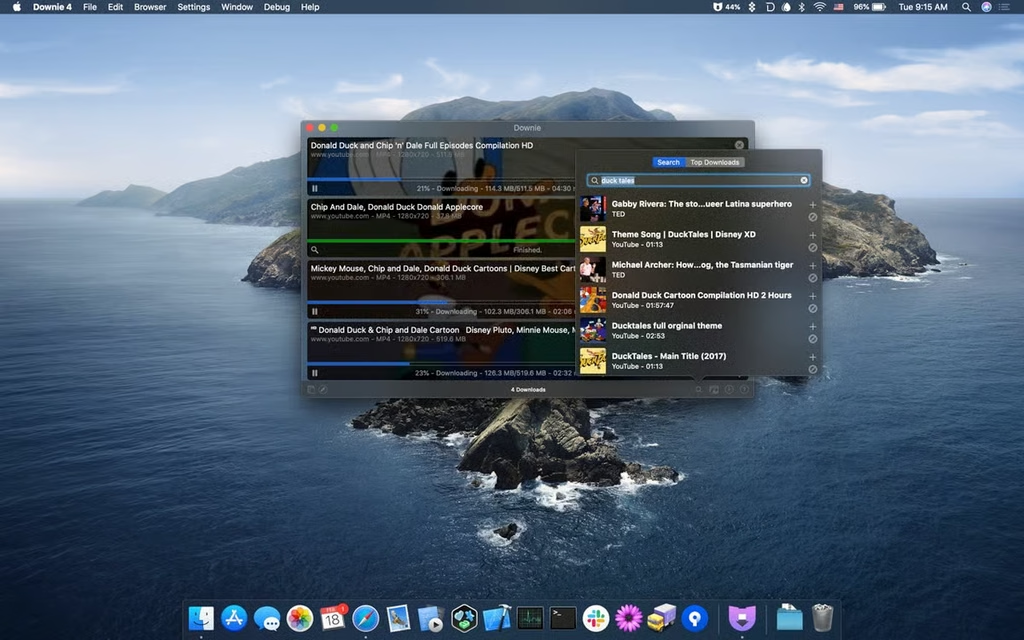
This is a fantastic app that I use occasionally for downloading videos from varies web platforms including YouTube and Vimeo. Not sure why but my free trial hasn’t expired yet. It’s on my list to convert to a paid version – $20 for a permanent license. Support your independent developers!
Final Cut Pro (paid)
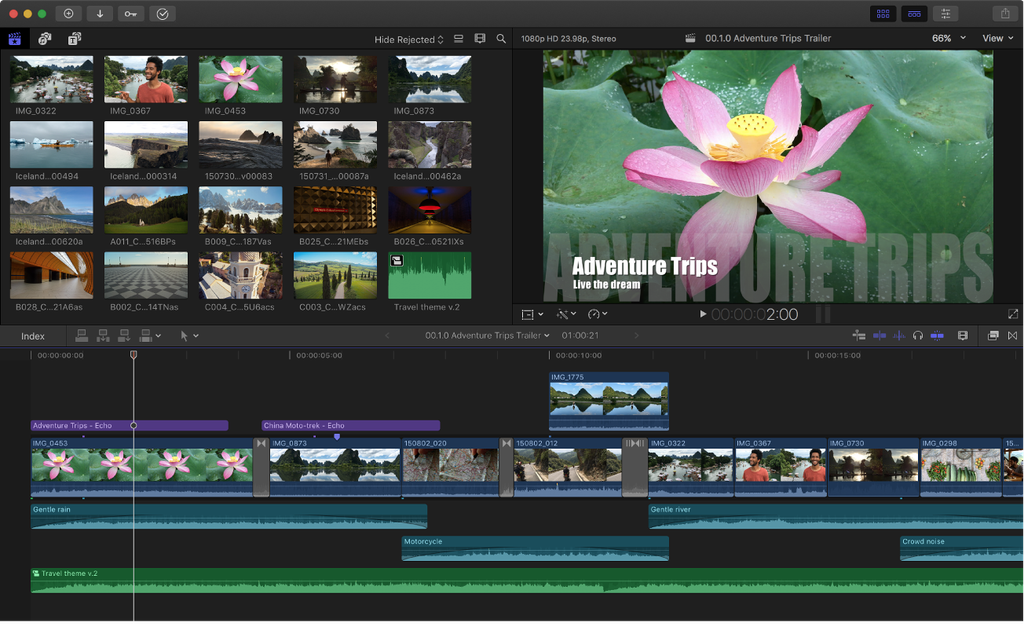
My wife Jill and I started experimenting with YouTube videos in the early days of the pandemic. She was the talent (obviously) and I did all the video editing. Now, she runs two channels and I’m working on starting one for technology.
I’ve tried Final Cut Pro and DaVinci Resolve. I avoided Adobe Premier because of the subscription model and because the entire Adobe suite is a heavy overbearing footprint on my machine. Final Cut Pro is the best for me, primarily because that’s what I learned on, and it’s Apple. We bought the license, and I appreciate that it’s not a subscription.
Apple is now offering a subscription model called Apple Creator Studio that includes Final Cut Pro, Motion, Compressor, various music tools, and a design tool called Pixelmator Pro.
As of this writing, Final Cut Pro is still available as a one time download for $300.
Now, we bounce around between Final Cut Pro, CapCut, and Descript (web text-based editing tool). But I always return home to my first love, Final Cut Pro.
Freedom (freemium)
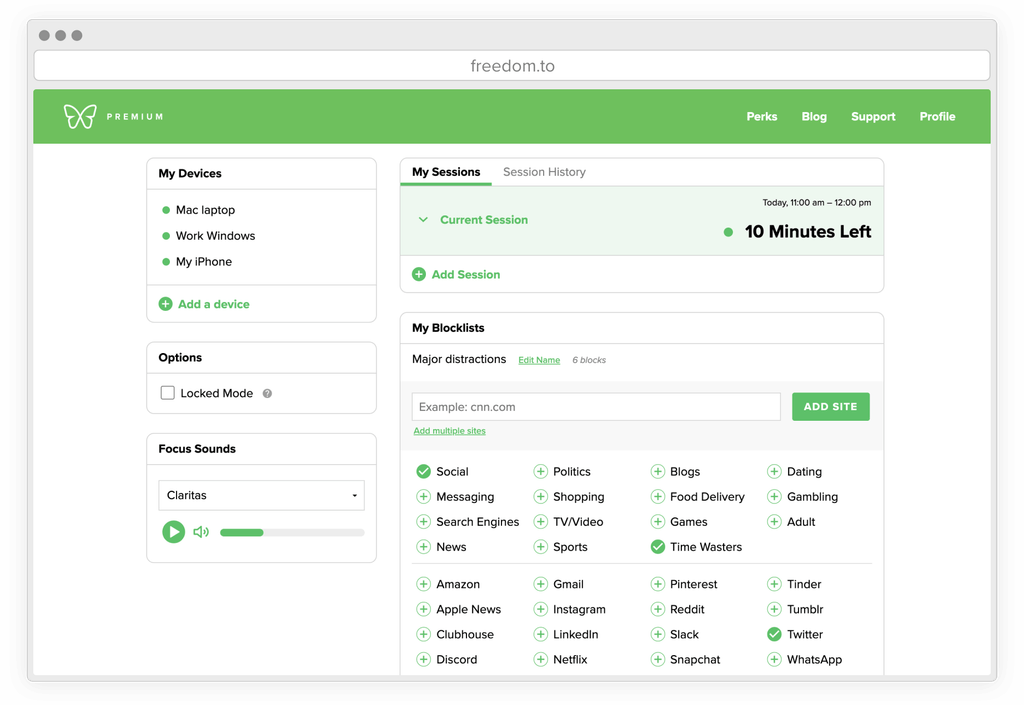
When I first started writing fiction in 2013, I could sit for hours in the Basalt Library and crank out three thousand words in an afternoon with no distractions other than the gorgeous Colorado day outside. Now, for whatever reason, my attention span is much shorter and so when I want an uninterrupted block of writing time, I’ll activate Freedom and block ESPN and Instagram. That usually does it.
Google Chrome (free)
Chrome is my daily workhorse, but I also use Brave as noted above. Because I manage a half-dozen websites on behalf of my family and for our business interests, I also have Safari, Firefox, and Edge installed to use for periodic testing.
AdBlock is installed in Chrome and it’s a lifesaver. I use the free version, but a premium option is available.
Browsers are polarizing. You either care way too much, in which case you’re probably using Firefox, or you care too little. For me, Safari is too constraining, Firefox is too niche, and I appreciate Chrome’s integration with Gmail, Google Calendar, and Google Docs, all of which I use regularly.
Lightroom Classic (Paid)

The OG (actually I guess Photoshop is the OG but you know what I mean) for managing a photo editing workflow. I dabble with street photography on occasion and Lightroom Classic is my app of choice. Despite Adobe’s many missteps and their horrible Adobe Creative Cloud abomination of an ecosystem, I hope they never get rid of Lightroom Classic.
Little Snitch Mini (Free)

More novelty for me than anything else, Little Snitch Mini shows outgoing network traffic from your Mac. It’s a lightweight, visual outbound firewall that allows you to see every application, background process, and system service on your Mac that is currently communicating over the internet, and block any outgoing connections.
Loom (freemium)

Powerful screen recorder and screen shot app. Also, expensive at $15 a month (annually) after you exhaust the first 25 video limit of the free version. I use this for creating screen videos for use in my YouTube videos. Loom is so popular, its name has become the category, like Kleenex. “Bro, send me a Loom on that idea.”
There are cheaper screen shot applications, including Shottr (see below) and Apple’s native Shift + Command + 4 which can grab a screen shot in a pinch. However, the ability to record your screen ups the ante and puts this tool in a crowded group with CleanShot, Tella, and ScreenFlow.
Might be eliminated in favor of Descript.
Apple Mail (free)
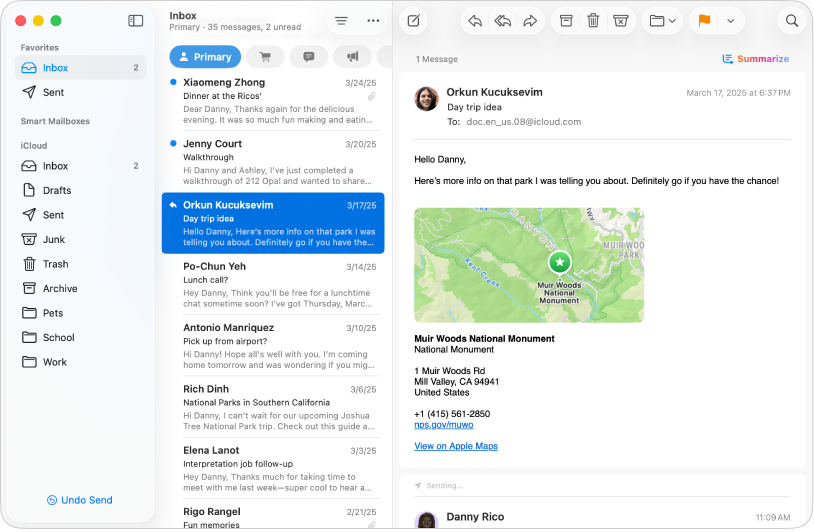
I have several IMAP email accounts sitting on servers that I manage, and despite having tried a half-dozen email clients including Thunderbird, Betterbird, Mailspring, Canary, and Airmail, I keep coming back to Apple Mail. It’s included with your Mac and does the simple job of connecting to a mail server and allowing you compose an email very well.
I find that most email clients are over-complicated and over-priced with schemes that I never use.
That said, my Gmail account is a complete mess (and I despise Gmail’s so-called organization schemes) so I aspire to a client for my Gmail that is simple and better designed. I’ll be trying Mimestream and I’ll report back.
Notion (free)

It took a while, but I’m a devoted Notion user now and I dare say I couldn’t run my side businesses without it. I’ve tried about every “productivity” app available, including Trello, Asana, ToDoist, Monday, AirTable, and Things, and I landed on Notion.
It’s a bit of a steep learning curve, but once you get it, it’s infinitely configurable for your own workflow.
It’s also free. After years of use, I’ve considered upgrading but haven’t needed to. The only limits I run into sporadically are file size upload limits.
Caveat: the mobile app is challenging to use, but it works great on iPad and on my MacBook Pro of course.
Proton VPN (paid)
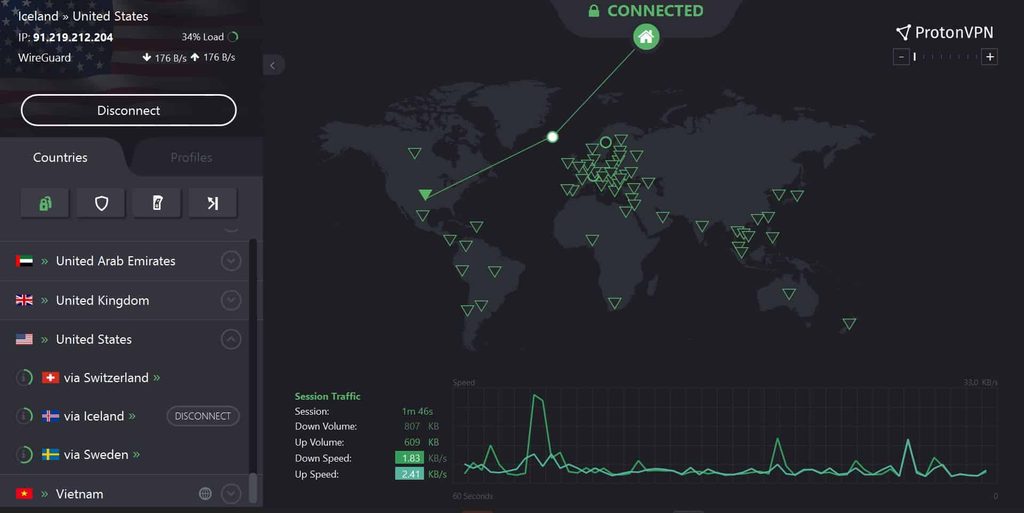
The entire Proton suite is highly recommended if you need a secure email account, a free password manager, cloud storage, two factor authentication, or even confidential video conferencing. The company is owned by a non-profit based in Geneva Switzerland, and their security is world-class.
I use the VPN when traveling for accessing my financial institutions and for gaining access to the content I want to see while overseas.
ProWritingAid (paid)

This is Grammarly for professional writers. When I was publishing fiction, ProWritingAide was the last step in my workflow before the manuscript went to my editor.
I paid for a lifetime version, but the tool is also available on a monthly plan if that works better for you.
The in-document functionality is a little wonky (all of them are, including Grammarly), and the app version requires me to break my novel up into 10 parts otherwise it chokes. But otherwise ProWritingAid is excellent.
If you care about your writing, I’d avoid Grammarly, which doesn’t have a good reputation in the professional writing community.
Scrivener (paid)

The writing client for professionals. While it’s a little over-complicated particularly in the “compile” function, if you’re writing long-form pieces that require heavy organization or research, Scrivener is your tool. While I use Ulysses for posts and newsletters, I write all my novels and non-fiction books in Scrivener.
There is a small and dedicated support community around Scrivener and lots of resources on YouTube to learn the tool. I think I paid $40 a decade ago for a standard license, now it’s $60.
Highly recommended if you’re doing any long-form writing.
For what it’s worth, my long-form writing work flow is:
- Manuscript outline: Excel
- Research and first three drafts: Scrivener
- Line edit draft: MS Word using track changes
- Pre-editor edit: ProWritingAide
- Editor draft: MS Word using track changes
- Final proof: MS Word using track changes
- Format: Vellum
Shottr (free)

Simple but robust screenshot app with annotations, drawing, and image resizing.
Alternative:
Mac’s effective but limited native screenshot tool: Shift+CMD+4
Spotify (paid)

My music service of choice. I’ve tried Pandora and Apple Music, but despite a somewhat challenging user interface, Spotify offers the best streaming, playlists, discoverability, and Smart Shuffle. Works seamlessly with my Wiim Ultra. Currently in the process of converting my podcasts to Spotify as well.
Stats (free)
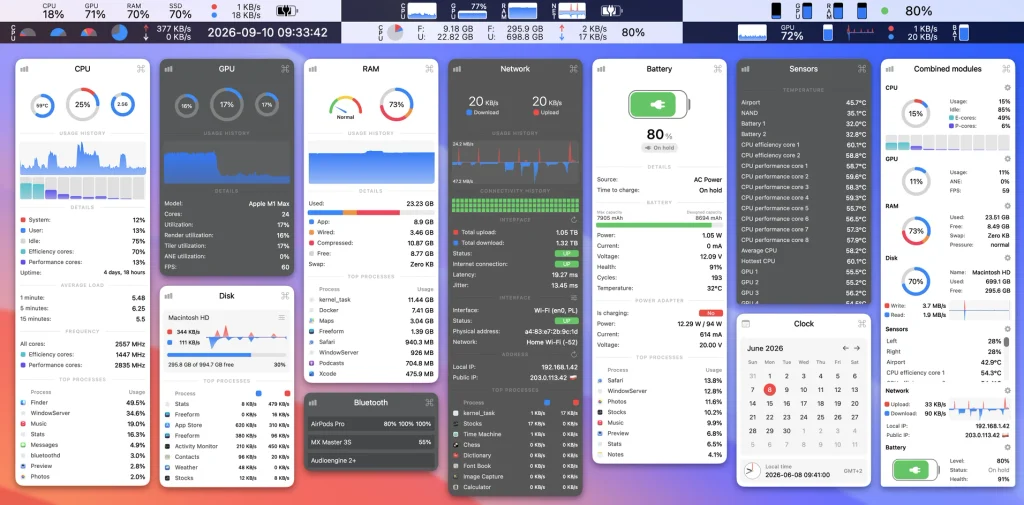
Monitors your Mac’s CPU, GPU, RAM, disk, network, and other performance. Apple gives you a couple of utilities for this – including help with clearing memory space if needed – but Stats is more comprehensive. It’s even available in 39 languages. It offers remote monitoring of your Mac’s stats, which I intend to use for the Mac Mini home server I’m planning to set up.
Ulysses (paid)
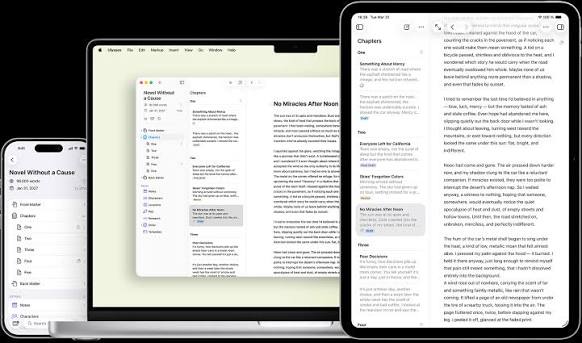
My favorite short-form writing tool. I’ve tried Bear, Craft, Google Docs, MS Word, and others. Ulysses is simple with good organization and it handles templating, drafts, and published categories, which is all I need for my newsletter and post writing.
At $40 a year, it’s not cheap. If I wanted a free writing tool, I’d probably be using Google Docs or Apple Notes.
OtherApps I’m testing that I can’t (yet) recommend
Affinity Designer: InDesign alternative
Alfred: custom hotkeys, deep file searching, and custom automated workflows
Rectangle: window management app
MenuMeters: another system monitor app, probably won’t use it over Stats
Mimestream: gmail client
Keyboard Maestro: automation tool for custom macros and scripts
Carbon Copy Cloner: backup and disk cloning utility
Descript: video editing and screen recorder
Backblaze: automated cloud backup service
Pure Paste: utility that clears all formatting from text copied to the clipboard
SoftRAID: RAID management software
Raycast: application launcher alternative to Spotlight
OpenZFS: open source RAID management software
Hazel: file management automation
Tailscale: private mesh VPN for remote server access
Amphetamine: utility to prevent a Mac from falling asleep